Having your phone nearby while you study can be a constant source of distractions: notifications, temptations, and those «five minutes on Instagram» which turn into half an hour. The good news is that Android has very powerful tools to tame those distractions without having to install anything.
In this guide we bring together native Android settings and useful tricks (as well as some recommended apps) so that your smartphone stops sabotaging your concentration. The objective is not 'living without a cell phone'but rather configure it to help you study better: concentrate when necessary and enjoy leisure when finished.
Step 1: Set limits on apps with Digital Wellbeing
The first filter is in Android itself: Digital Wellbeing and Parental Controls. Here you will see how much time you spend on each app and you can set timers.
- Open Settings > Digital Wellbeing and Parental Controls.
- Tap the usage graph and locate the apps that steal your time the most.
- Press the hourglass icon next to each app and set a limit (e.g. 30–45 min/day for social media).
- When you reach the top, Android will pause the app, and its icon will turn black and white.
Practical advice: If you have an exam nearby, tighten the limits from Monday to Friday and give them a little more leeway on the weekend. This way you can maintain the habit more easily.
Step 2: Activate Focus Mode
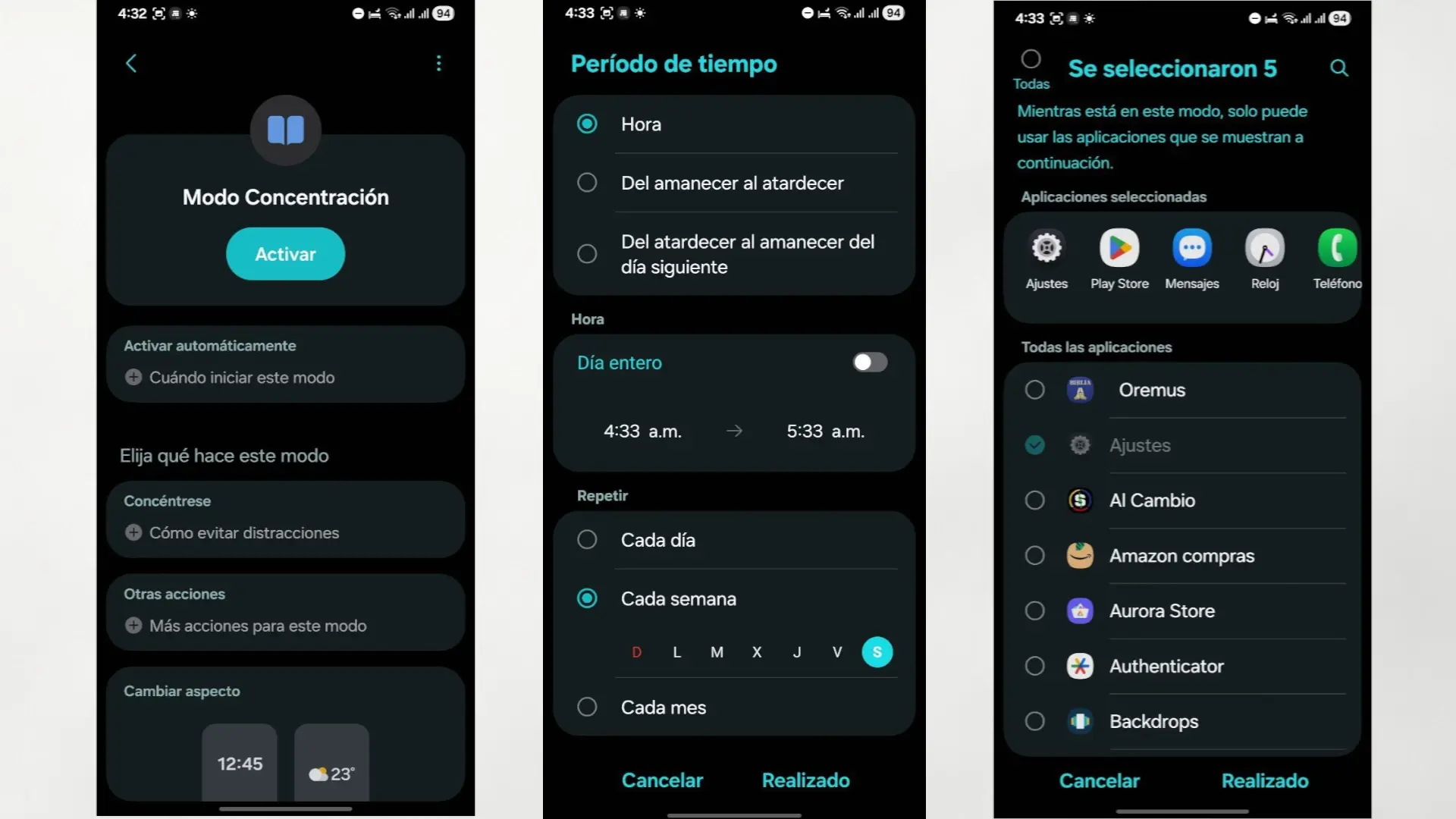
He Concentration mode Suddenly pause the apps you choose and silence their notifications. Ideal for intense sessions.
- Go to Settings > Digital Wellbeing > Concentration mode.
- Mark the apps that distract you the most (networking, shopping, games, short videos, etc.)
- Activate the mode manually from the quick access in the notification curtain or schedule a time (for example, from 17:00 to 19:00).
- If you need a break, use the option “Rest” (5–10 min) and returns to focus without falling into the infinite scroll.
Typical routine: 50 minutes of Focus Mode + 10 minutes of rest. Repeat 3–4 cycles and take a longer break of 20 minutes.
Step 3: “Do not disturb” properly configured
Do not disturb mode, well configured with exceptions, is not an extreme option: it allows you to filter what is important and silence the rest.
- Enter Settings > Notifications > Do not disturb.
- Allows “People” and “Apps” that can notify (for example, phone and calendar). The rest, total silence.
- Add a shortcut to DND in the quick settings and, if your mobile allows it, activate gestures such as put the phone face down to silence.
Trick for emergencies: leaves the volume of calls high and low to minimum notifications. This way you find out if something important happens, but WhatsApp doesn't break your concentration.
Step 4: Grayscale Screen and Dark Theme
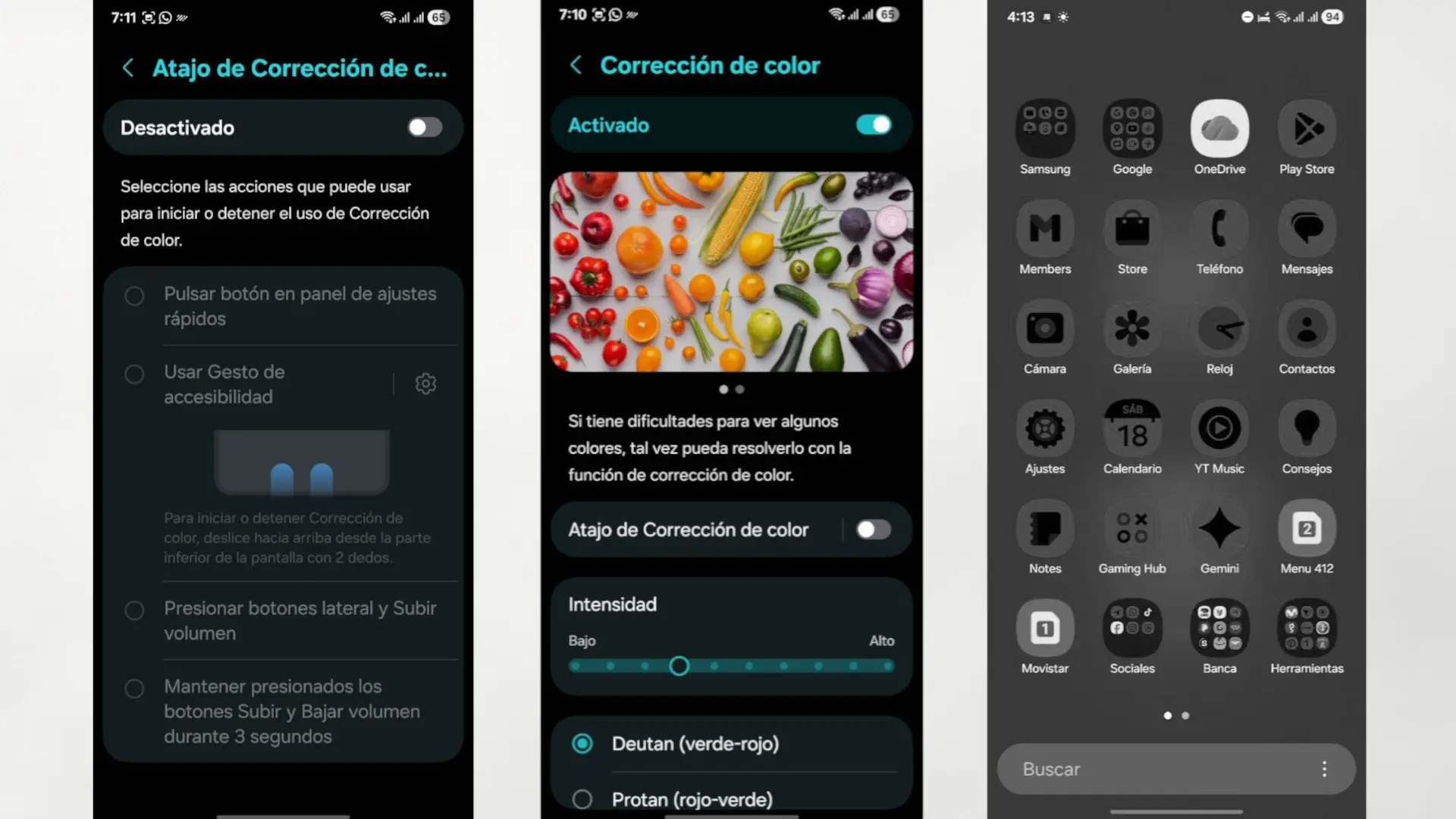
The color catches. Move the screen to gray scale reduces “visual hook” to networks and games.
- Go to Settings > Digital Wellbeing > Rest mode.
- In Screen options during the breakactive gray scale.
- Program the mode to activate at finish studying or every night (for example, 10:30 p.m.–7:00 a.m.), next to the Dark theme and lower brightness.
Practical advice: if you are going to make index cards or read PDFs, leave the color; If you do test-type problems or reading without images, activate the gray scale during the study block. On the other hand, if you have a Samsung device, the grayscale option is found in “Accessibility.”
Step 5: Your time, under control with Focus To-Do
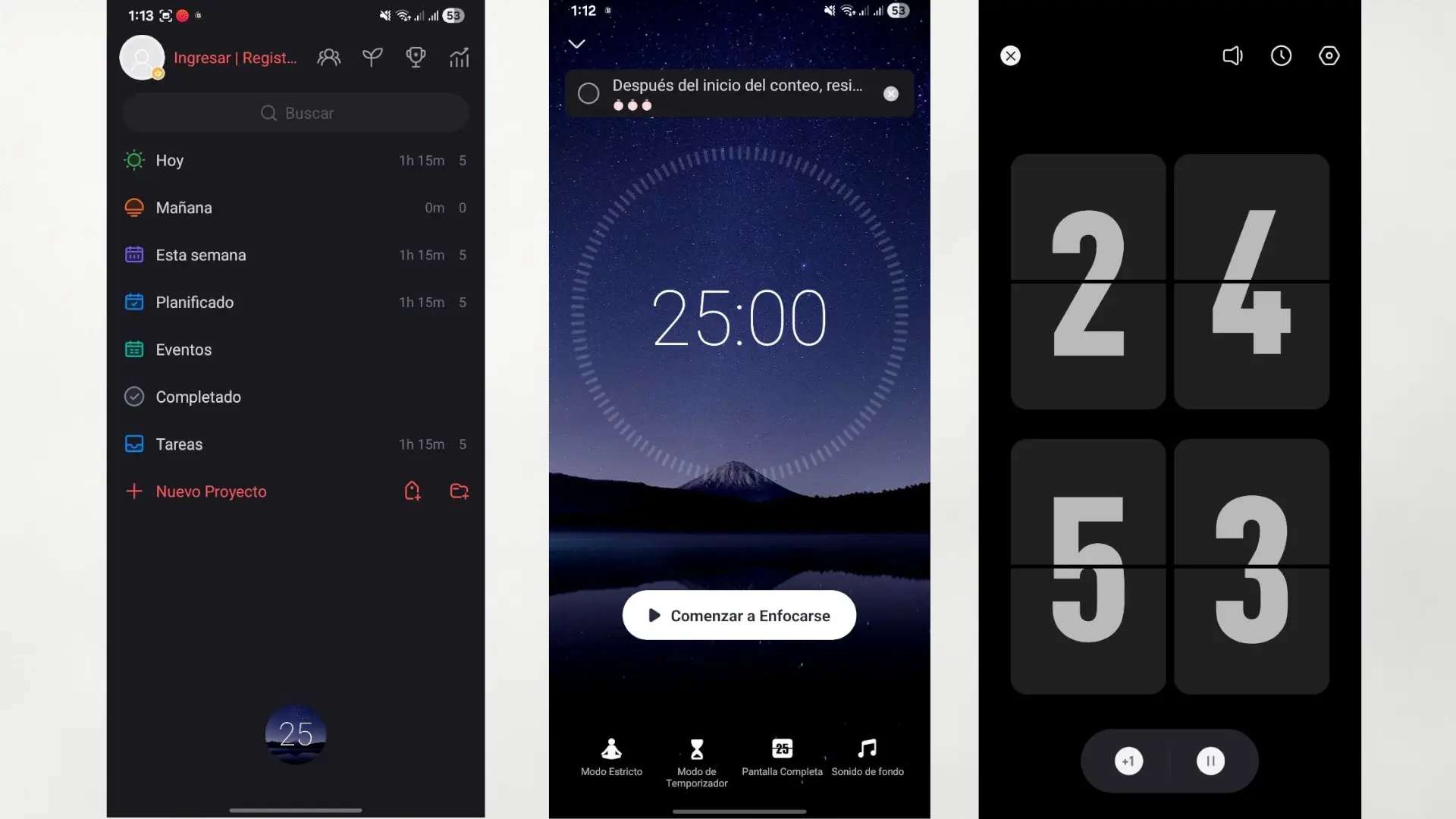
Sometimes we just need a little order to make everything flow better. Focus To-Do It helps you with just that: to concentrate, organize and do things without complications. The Pomodoro technique It is a simple method to improve concentration and make better use of time. It consists of working during 25 minutes without distractions and then take a short break from 5 minutes. Every four rounds there is a longer pause to recharge. This technique helps you maintain focus, avoid burnout, and move forward with more clarity and pace in any task.
And the best thing, you can use it from your phone, computer or tablet, wherever you are.
Extra step: organize your home screen to avoid impulsive habits
Making small adjustments to the home screen helps reduce impulsive app openings:
- A single desk with everything you need to study (Notes, PDF, Calculator, Calendar, Timer). Avoid placing social media widgets.
- Place the “Networks” folder on the last page. Even better: remove it from the desktop and access it only from the app drawer.
- Delete notification balloons (circles with numbers) in non-essential apps.
- Change the launcher if customization layer Your mobile phone does not allow these settings.
With these settings, your cell phone stops being the enemy of the study and becomes your silent assistant. The ideal is to configure it only once and activate it every day at the same time. Consistency will do the rest.