
It happens to almost everyone at some point: you change your phone, you reinstall WhatsApp or you simply open the app one day and, instead of seeing the names of your friends and family, you find a list of numbers loose with international prefix. It's a little scary to think that you've lost your entire agenda, but don't worry, it's not like that. It is one of the most typical errors in the application and, almost always, it has a very quick solution.
We are going to review the most common causes and how to fix them step by step, whether you use Android or iPhone.
Check contact permissions
The number one reason for this problem is that WhatsApp you have lost access to your phone's address book. It can happen after a system update, right after installing the app, or because you inadvertently touched a privacy setting. If WhatsApp can't read your phonebook, the only thing it has left to show is the raw number.
On Android:
- Enter Settings from the phone
- Go to Applications and search WhatsApp
- Tap on Permissions
- Check that Contacts is set to Allow
On iPhone the process is practically copied. Open iOS Settings, scroll down until you find WhatsApp in the list of apps and enter its menu. There you will see a switch next to the word Contacts: If it is not green, activate it.
Once this is adjusted in either system, close WhatsApp completely (don't leave it in the background) and open it again to load the information again.
Force the app to sync the calendar
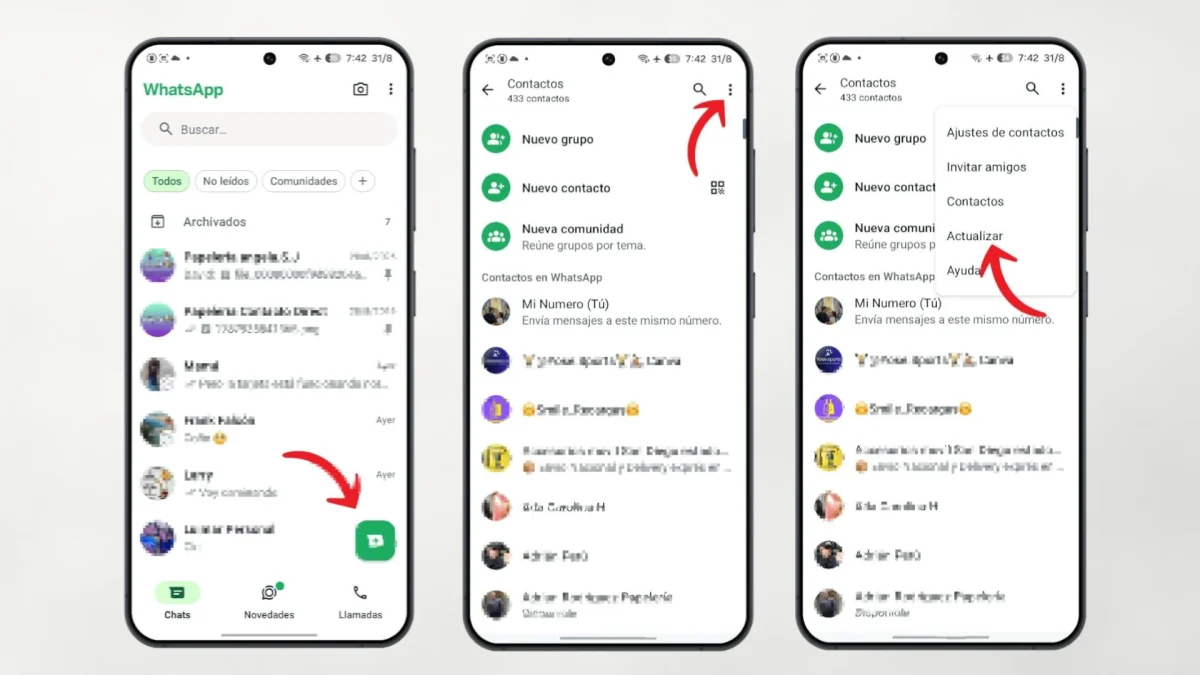
If the permissions were already granted correctly and the problem is still there, the next step is to force WhatsApp to refresh your internal database. The app does not read the agenda in real time all the time, but rather makes periodic checks, and sometimes that query is left half-finished.
On Android it is a matter of seconds: open WhatsApp, press the green button to start a new chat, touch the three dots in the corner top right and choose Update. A notice will appear below and, after a few moments, the names should recover on their own.
On iOS there is no equivalent button within the app, but there is a trick that works just as well: go to Contacts, edit any tab (for example, add a letter to a note and delete it later) and save the change. That little move forces iOS to refresh its contact database, and WhatsApp syncs behind it.
Check your cloud account
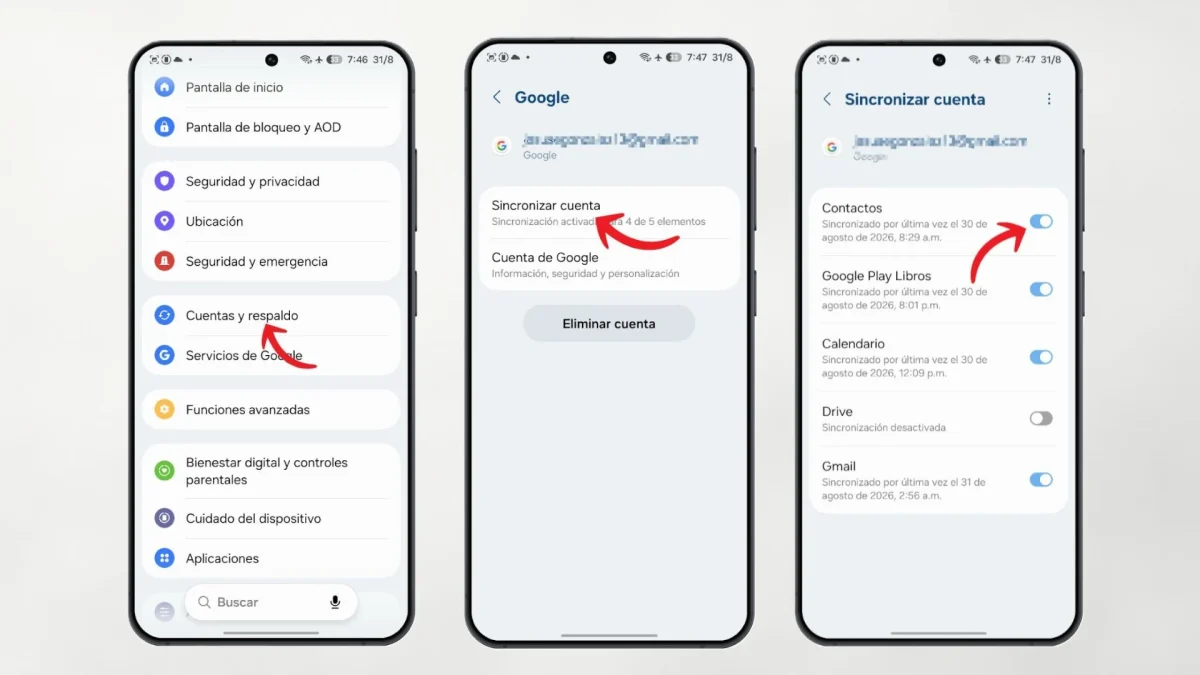
Another very common reason appears when you change your mobile phone or manage your contacts from several email accounts (Gmail, Outlook, iCloud…). If the account where you have the calendar saved is unlinked from the device, names disappear from WhatsApp in one fell swoop.
To know if the fault comes from here, there is a simple trick: open the native calling app on your mobile. If the names do not appear there either, the problem is not with WhatsApp, but with the synchronization of your Google or Apple account. The solution is to enter the phone's account settings and confirm that sync is activated in your main email.
Look at the number prefix
This detail is often overlooked, but it is key: the contacts saved in the phonebook must include the country prefix, especially if they are international numbers. For your phone's phonebook to work well with WhatsApp servers, it is important that your important contacts have their corresponding prefix. (+34 if they are from Spain, for example).
The good news is that, by default, the system itself usually adds the prefix of the region where you have the phone configured, so in most cases this is already resolved at the factory.
As a last resort: clear the cache
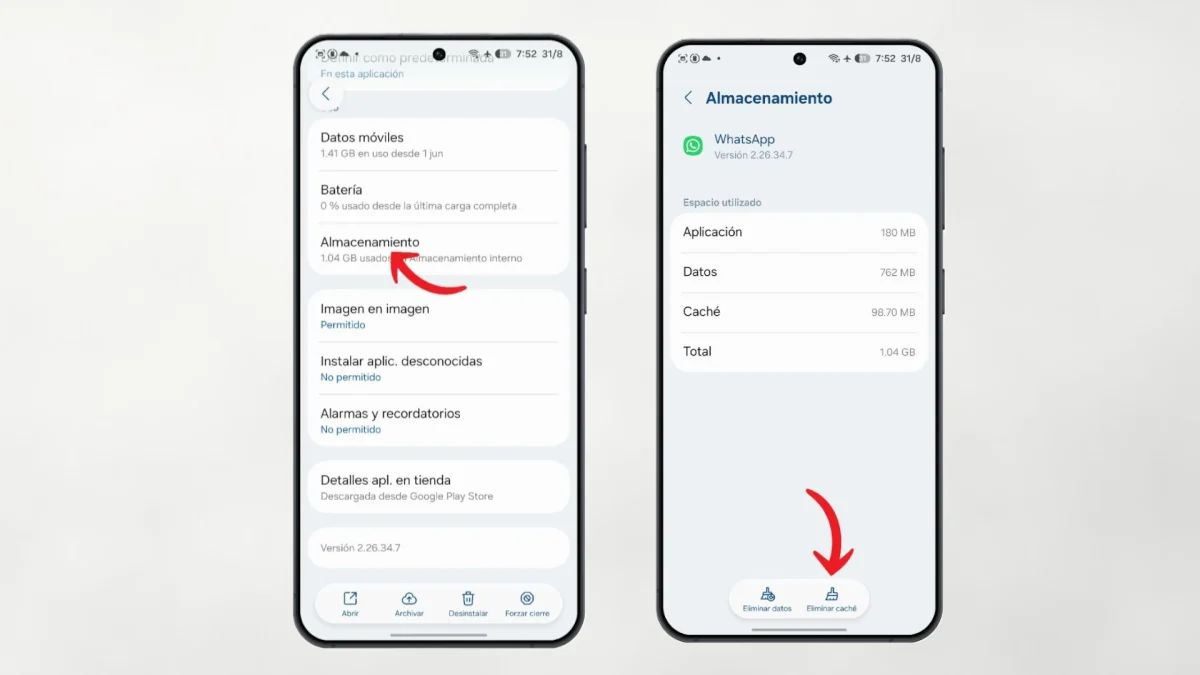
If you have tried all of the above and the numbers are still there, stubborn as a mule, it's time to go one step further: clear app cache. This cleans temporary files that may have become corrupted and blocking data from being read.
On Android: go to Settings, Applications, select WhatsApp and enter Storage. There you will see Clear cache. Be careful with this, because you have to look closely and not confuse it with Delete data, since that second option would delete your conversations if you do not have a recent backup.
In iOS there is no such option natively, so the equivalent is to restart the iPhone completely. When you do this, the system automatically empties the temporary memory, and the effect is similar to clearing the cache on Android.
With these steps, in the vast majority of cases the problem is solved without having to reinstall anything or lose any conversations. And since we are talking about synchronizations and reinstallations of WhatsApp: if you recently used ChatGPT directly from your chats and now it does not respond to you, it is no coincidence, there was a temporary stoppage of the service. We tell you how to talk again with ChatGPT on WhatsApp so that you can resume that function without problems.