


Imagine walking into a meeting where every detail is recorded, to-dos are automatically assigned, and follow-up is organized without you having to lift a finger. That’s the promise of Copilot in Teams, Microsoft’s intelligent assistant. In 2025, when efficiency and accuracy are more essential than ever, this development is positioned as the essential tool for those looking to eliminate the chaos of manual notes and tracking scattered tasks. We’ll tell you how to take advantage of it like a pro.
How can Copilot help you in Teams?
Copilot in Teams is much more than a simple virtual assistant. Powered by artificial intelligence, it acts as a personal assistant within Microsoft’s collaboration platform, simplifying and optimizing the digital work experience. It uses machine learning algorithms and natural language processing to anticipate your needs, improve communication, and boost the productivity of the entire team.
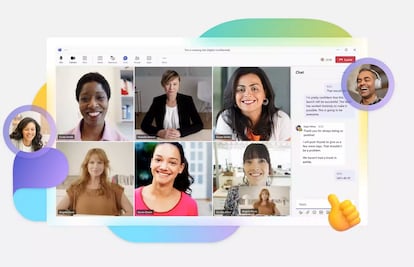
Its goal is clear: to enable teams to work more effectively, reducing the burden of manual and repetitive tasks so you can focus on what really matters: collaboration and strategic decision-making.
The main functions it offers
Copilot unleashes its full potential at every stage of the meeting cycle, from preparation to follow-up. These are its key features :
How to use this tool in Teams
- Real-time transcription and recording: Capture every word during the meeting, generating an accurate and easy-to-reference transcript—ideal for those who join late or need to review key details.
- Copilot Personal Dashboard: Allows you to interact privately with Copilot, ask questions, request briefings, or clarify points without interrupting the flow of the meeting.
- Task and Recommendation Identification: Analyzes the topics covered, automatically generates task lists, and highlights critical points to ensure clear and actionable follow-ups.
- Executive summaries: At the end of the meeting, Copilot provides concise summaries of key agreements and next steps, saving time and facilitating team alignment.
- Automation of routine tasks: From scheduling appointments to managing reminders, Copilot takes care of repetitive tasks, freeing up time for higher-value activities.
- Integration with other Microsoft tools: Connects with OneNote, Outlook, and other applications, centralizing documentation and task management for a more efficient workflow.
- Data and analytics support: Provides real-time analytics and decision-making insights directly within chats and meetings.
To use Copilot in Teams, you need a valid Microsoft 365 license and the specific subscription for AI use. Admins can enable access from the apps section, allowing users to use the tool in chats, meetings, collaboration groups, and soon in Teams channels.
Tips to get the most out of Copilot
To make Microsoft development the perfect partner for your team, keep these practical tips in mind:
- Allow processing time: Wait for Copilot to complete transcripts and summaries before reviewing them, ensuring maximum accuracy.
- Efficient task delegation: Use the direct task assignment feature from the meeting interface to ensure clarity and accountability.
- Act on follow-up suggestions: Leverage AI-generated recommendations to maintain team momentum and alignment.
- Review recurring themes: Leverage Copilot’s ability to identify common patterns and themes, improving strategic planning and decision-making.
Copilot in Teams represents a new step in the evolution of business collaboration. Thanks to its artificial intelligence capabilities, it transforms meetings into productive spaces where every detail counts and every task is executed effortlessly. If you’re looking to optimize management, improve organization, and boost your team’s productivity, this development is the solution that will make a difference in your daily work.